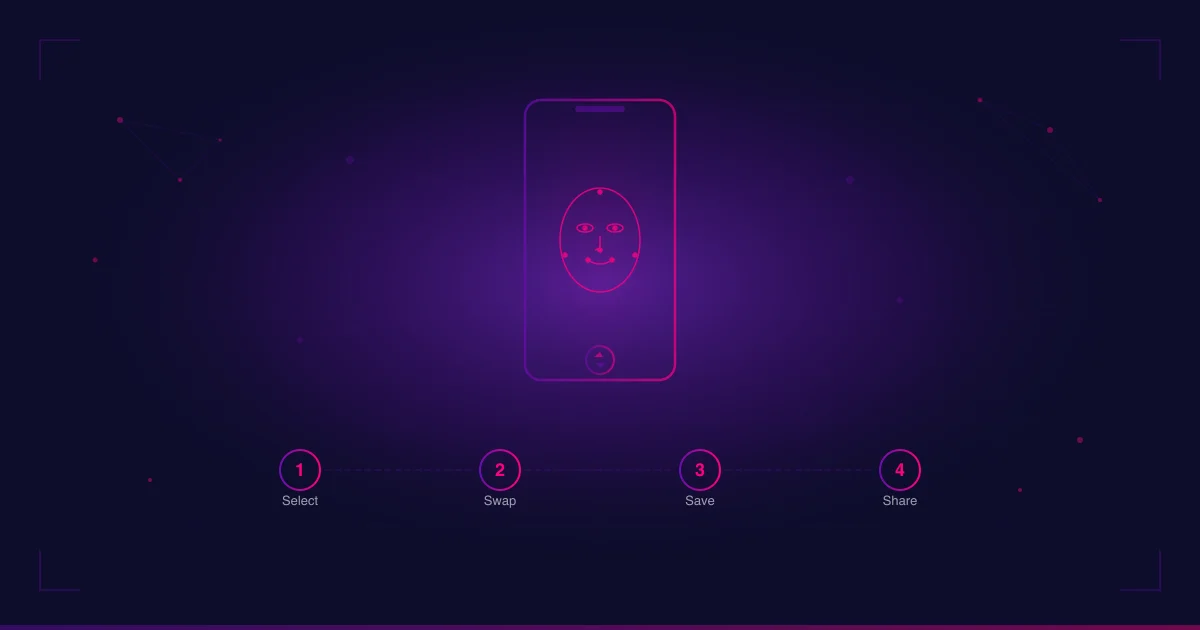
How to Face Swap on Android — Step-by-Step Guide
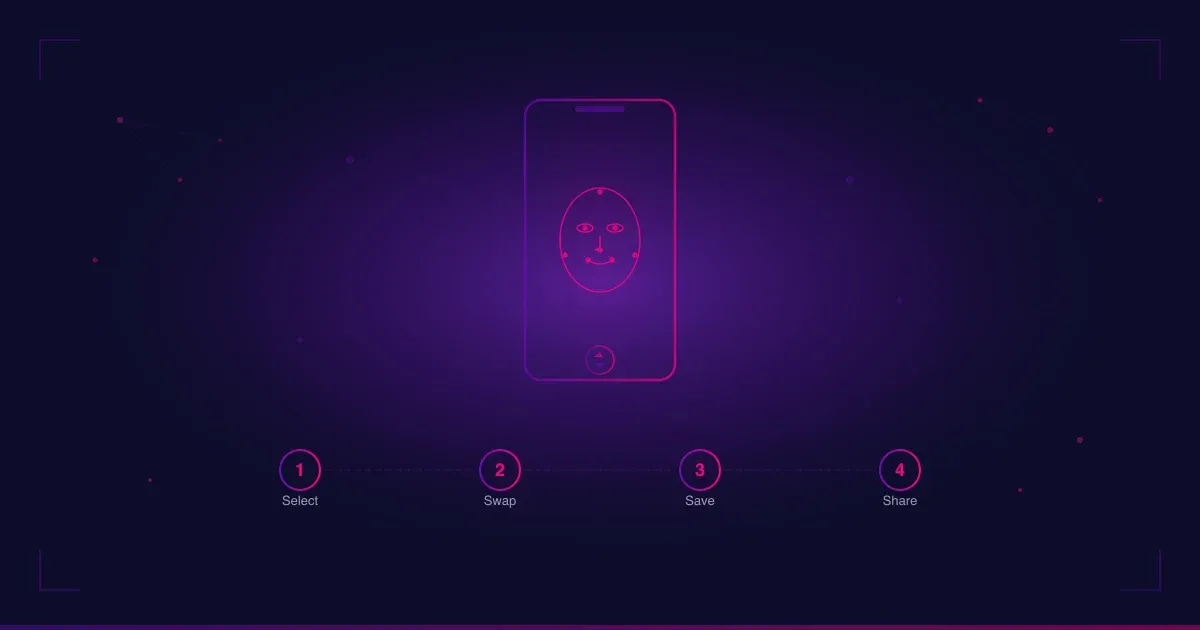
Face swapping on Android is simpler than most people expect. You don’t need a desktop, you don’t need Photoshop, and you don’t need to understand anything about AI models. You need an Android phone, a clear photo of a face, and a face swap app that doesn’t waste your time with signup walls before you see a single result.
This guide walks through the full process — photo face swap and video face swap — using Face Swap AI, a focused Android app built around your own photos rather than a template carousel. The same general steps apply to most face swap apps on Android, but the specific UI and feature details here match Face Swap AI’s flow.
What You Need
Before you start, make sure you have three things ready:
- An Android phone. Any modern Android device running Android 8.0 or later will work. Face Swap AI does the heavy lifting on cloud GPUs and returns a realistic HD result in seconds — with no account to create first.
- A clear source face photo. This is the face you want to swap onto something. A front-facing selfie with even lighting works best. More on what makes a good source photo in the tips section below.
- A target photo or video. This is the image or clip where you want the new face to appear. It can be a photo from your gallery, a group shot, a screenshot — anything with a clearly visible face.
That’s it. No account creation, no email, no social login. Face Swap AI uses an anonymous device key, so you can start swapping the moment the app opens.
Step 1: Download Face Swap AI
Open the Google Play Store and search for Face Swap AI, or go directly to the Play Store listing.
Tap Install and wait for the download to finish. The app is lightweight, so this takes a few seconds on most connections.
Once installed, open the app. There’s no signup screen, no tutorial overlay that blocks you from doing anything, and no subscription prompt before your first swap. You land directly on the main screen.
Step 2: Choose Your Swap Type — Photo or Video
Face Swap AI handles both photo and video face swaps in the same app, using the same flow. On the main screen, you’ll see the option to start a swap.
- Photo face swap: Pick this if you want to swap a face in a still image — a selfie, a group photo, a meme, a portrait.
- Video face swap: Pick this if you want to swap a face in a short video clip. The app processes each frame with temporal consistency so the result doesn’t flicker or wobble as the subject moves.
For your first swap, start with a photo. It’s faster to process and easier to judge the result.
Step 3: Select Your Source Face
The source face is the face you want to use — typically your own face or the face of someone who has given you permission.
Tap to select a source photo from your gallery. The app’s face detection will identify the face automatically. For best results:
- Use a front-facing photo where the face is clearly visible
- Avoid heavy shadows across the face
- Make sure the face is not cropped or partially out of frame
Face Swap AI detects the face in the source photo and extracts the identity features — the shape of the eyes, nose, mouth, jawline — that it will map onto the target.
Step 4: Select Your Target
The target is the photo or video where you want the swapped face to appear.
Pick a target from your gallery. The app will detect every face in the target and let you choose which one to replace. If there are multiple faces in the target — a group photo, for example — you can select the specific face you want to swap.
Good targets have:
- A face that’s clearly visible and reasonably large in the frame
- Decent lighting (not completely dark or blown out)
- A head angle that isn’t extreme — three-quarter views work, but straight-on gives the cleanest result
Step 5: Tap Swap and Wait
Once you’ve selected both the source face and the target, tap the swap button. Face Swap AI sends the swap to its cloud GPUs and returns the finished result to your phone — and because there’s no account, you never had to sign up to get here.
For a photo swap, the result appears in a few seconds. For a video swap, processing time depends on the clip length, but a 5-second clip typically finishes in under 30 seconds.
The app runs through the full AI pipeline on every frame: face detection, landmark mapping, identity swap, and blending. The result is an HD output file with no watermark — on both free and paid swaps.
Step 6: Save and Share
When the swap is done, you’ll see the result on screen. Review it — zoom in on the edges around the jaw and hairline, check that the skin tone matches, and make sure the expression looks natural.
If you’re happy with it:
- Save the result directly to your gallery
- Share it to any app — WhatsApp, Instagram, TikTok, or wherever you want to post it
The output file is HD quality with no watermark, no logo, and no branding on it. What you save is what you get.
How to Face Swap in a Video on Android
The video face swap flow in Face Swap AI follows the same steps as photo — select source face, select target video, tap swap. The difference is what happens under the hood.
Video face swap processes every frame individually but maintains temporal consistency across the clip. This means the swapped face holds its shape, skin tone, and identity as the subject moves, turns, and changes expression. Without temporal consistency, video swaps look like a slideshow of slightly different faces stitched together — flickering, wobbling, uncanny.
A few video-specific tips:
- Keep clips short. 3–10 seconds is the sweet spot for quality and processing time. Longer clips work but take proportionally longer.
- Stable footage is easier. A clip from a tripod or a stable handheld shot swaps cleaner than shaky handheld footage.
- Front-facing movement works best. A subject turning from front to side is fine; a subject facing completely away is a frame the detector can’t work with.
For a deeper look at the technical pipeline behind both photo and video face swaps, see our explainer on how AI face swap actually works.
Tips for the Best Face Swap Results
The quality of a face swap is mostly determined by the quality of your inputs. The AI can only work with what you give it. Here’s what makes the biggest difference.
Lighting
Match the lighting between your source face and the target as closely as possible. If the target photo was taken outdoors in daylight, use a source selfie taken in similar light. A source shot in flat indoor light swapped onto a target with hard directional sunlight will look pasted on, no matter how good the AI is.
Angle
Front-facing source photos produce the best results. The AI can handle three-quarter angles and slight tilts, but extreme side profiles or heavily tilted heads lose detail around the cheekbone and jawline. If you have a choice, shoot your source face straight-on.
Resolution
Higher-resolution source photos give the AI more data to work with. A 1080p selfie from your phone camera is plenty. A tiny cropped face from the corner of a group shot is not. Make sure the face in your source photo takes up a meaningful portion of the frame.
Expression
Neutral or natural expressions swap most cleanly. If the source face is smiling and the target face is serious (or vice versa), the AI has to interpolate — estimate what your mouth and eyes would look like at a different expression. It usually gets close, but matching expressions between source and target gives the sharpest result.
Skin tone and complexion
The blending step adjusts color tone to match the target, but it works best when the source and target skin tones are in a similar range. Extreme mismatches — very light source on very dark target or vice versa — push the blending model harder and occasionally show seams at the jaw or hairline.
Troubleshooting Common Issues
The app can’t detect a face
This usually means the face in your photo is too small, too dark, partially covered, or at an extreme angle. Try a different photo where the face is larger, better lit, and more directly facing the camera.
The swap looks blurry or soft
Your source photo may be low resolution, or the face in it is cropped too small. Use a higher-resolution source where the face fills more of the frame. Also check that your source isn’t a screenshot of a screenshot — each generation of compression degrades the detail the AI needs.
The skin tone doesn’t match
This is a blending limitation that shows up when source and target lighting differ significantly. Try a different source photo taken in lighting conditions closer to the target. Outdoor-to-outdoor and indoor-to-indoor pairings work best.
The edges around the jaw look unnatural
This is the most common artifact in face swapping. It happens when the blending step can’t perfectly match the edge of the swapped face to the surrounding skin. Front-facing angles with even lighting minimize this. If you see it, try a source photo with a slightly different head angle or crop.
Video swap flickers between frames
Some flicker is normal on extreme head movements or rapid lighting changes. For the most stable video output, use clips with steady movement and consistent lighting. Avoid clips where the subject whips their head or passes through dramatic light-to-shadow transitions.
Try It Yourself
Face Swap AI gives you 3 free swaps to test with — same HD quality, same no-watermark output as paid swaps. No account, no credit card, no commitment.
Download Face Swap AI on Google Play
If you want more swaps after the free ones, one-time credit packs are available through Google Play — no subscription, no recurring charges.
FAQ
How do I face swap on Android?
Download a face swap app like Face Swap AI from Google Play, select a source face (your selfie), select a target photo or video, and tap swap. The app handles face detection, identity mapping, and blending automatically. The whole process takes a few seconds for photos and under 30 seconds for short video clips.
Is there a free face swap app for Android?
Yes. Face Swap AI gives you 3 free swaps with full HD quality and no watermark. After that, one-time credit packs are available through Google Play — no subscription required. For a broader look at free options, see our roundup of the best AI face swap apps for Android.
Can I face swap in videos on Android?
Yes. Face Swap AI supports both photo and video face swaps in the same app. Video swaps process each frame with temporal consistency so the face holds its shape as the subject moves. Short clips (3–10 seconds) produce the best results.
Do face swap apps need internet access?
Yes. Face Swap AI runs the swap on cloud GPUs, so an internet connection is needed to send your selected images and receive the finished result. That is the standard setup for apps that produce realistic HD output. What Face Swap AI skips is the account: it uses an anonymous device key, so no email, login, or profile is attached to the swaps you make.
Why does my face swap look fake?
The most common reasons are mismatched lighting between source and target, an extreme head angle in the source photo, or a low-resolution source image. Use a front-facing selfie taken in lighting similar to the target photo, and make sure the face in your source is large and clear. See the tips section above for specific guidance.
Is face swapping on Android safe?
Safety depends on the app, not the technology. Face Swap AI uses anonymous device login (no email or social account), so the swaps you make are never tied to your name or a profile. The swap runs on cloud GPUs like most realistic-quality apps, and your photos are not used to train models. Always use faces you have consent to swap — the technology is neutral, but the ethics are on the user.
What to Read Next
- How to Face Swap a Video on Your Phone — Step-by-Step — the video-specific walkthrough, including the clip settings that prevent flicker
- How Does AI Face Swap Work? A Plain-English Guide — the technical pipeline behind every swap explained without jargon
- 8 Best AI Face Swap Apps for Android in 2026 — a comparison of the top Android options ranked by what actually matters: watermark and monetization model