How to Face Swap a Video on Your Phone — Step-by-Step (2026)
Swapping a face into a still photo is easy. Swapping a face into a video is where most people get stuck — the result flickers, the jaw warps as the head turns, or the app quietly downgrades the clip to a watermarked, low-res preview. None of that is inevitable. Video face swap on a phone works well in 2026 when you understand what the AI needs from your clip and pick an app that does video properly instead of treating it as a bolt-on to its photo flow.
This guide walks through how to face swap a video end to end on your phone — what footage to use, the exact steps, the settings that prevent flicker, and how to fix the artifacts that show up when something goes wrong. It uses Face Swap AI, an Android app that handles photo and video swaps in the same flow with HD, watermark-free output, but the general steps apply to most video-capable face swap apps.
Why Video Face Swap Is Harder Than Photo
A photo swap is one frame. A video swap is every frame, plus the constraint that all those frames have to agree with each other.
When you swap a face into a photo, the app detects the face once, maps your source identity onto it, blends the edges, and it is done. A ten-second clip at 30 frames per second is 300 separate swaps that each have to look right and line up with the frames before and after. If the model treats each frame independently, the swapped face jitters — the identity is slightly different frame to frame, and your eye reads that as flicker. Good video face swap adds temporal consistency: the model uses information from neighboring frames so the swapped face holds its shape as the subject moves.
This is also why video is more demanding on your source photo and your target clip. A marginal source that just barely works on a still will expose every weakness across 300 frames. Understanding the underlying pipeline helps here — our explainer on how AI face swap actually works breaks down detection, landmark mapping, the identity swap, and blending, which is exactly the sequence that runs on every frame of your video.
What You Need Before You Start
Three things determine whether your video swap looks clean or rough, and all three are about input quality:
- A clear source face photo. This is the face you are swapping in. Use a front-facing selfie with even lighting where the face is large and sharp. The source is reused across every frame, so any flaw in it — a shadow across one cheek, an extreme angle, low resolution — repeats 30 times a second. This is the single biggest lever on output quality.
- A short, steady target clip. This is the video you are swapping the face into. Three to ten seconds is the sweet spot. The subject’s face should stay reasonably front-facing, well-lit, and large in the frame. Avoid clips where the person whips their head, walks through dramatic light-to-shadow transitions, or where the face is tiny or frequently occluded.
- A video-capable app. Many face swap apps do photos well and video poorly — or lock video behind a subscription. Face Swap AI handles both in one flow with HD, watermark-free output, no account to create, and no subscription — three free swaps to start.
Step-by-Step: How to Face Swap a Video
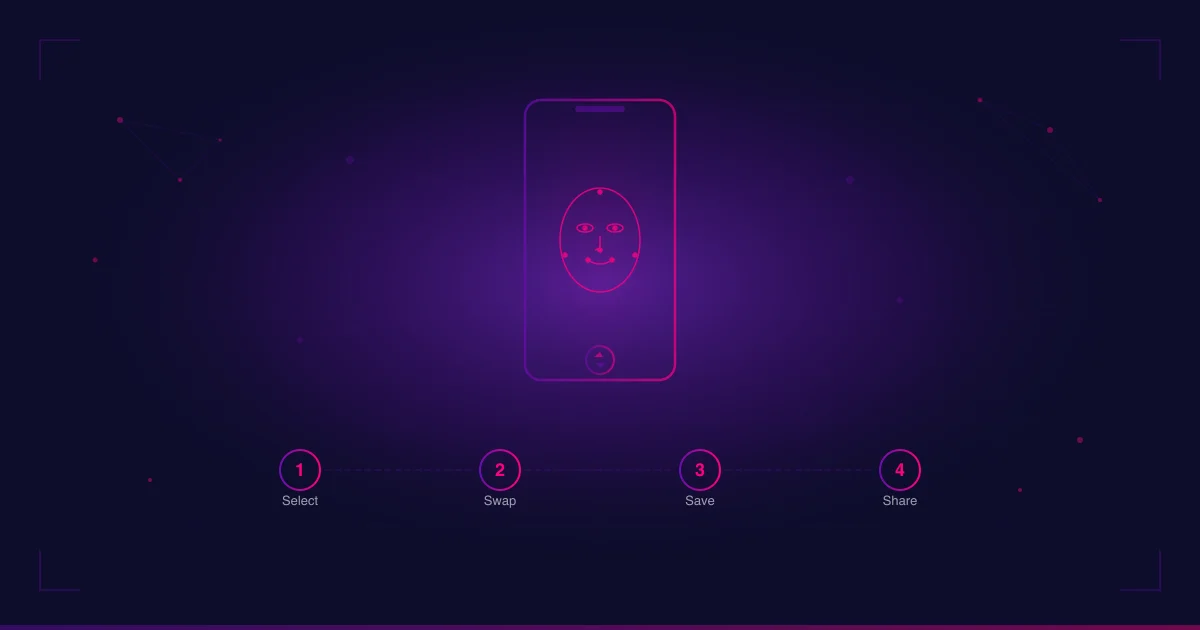
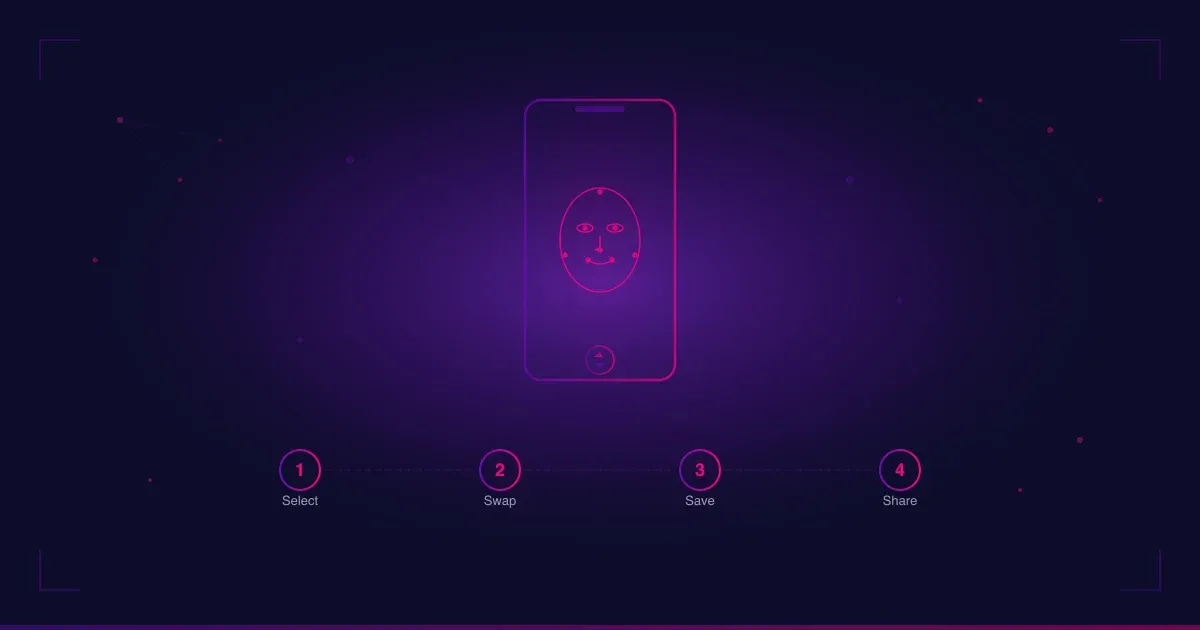
The flow below is Face Swap AI’s; the general shape (pick source, pick target clip, swap, save) is the same in most video-capable apps.
Step 1 — Open the app and choose video mode
Launch Face Swap AI. If the app separates photo and video swaps, choose the video option. Face Swap AI uses anonymous device login, so there is no email or account step — you go straight to the swap.
Step 2 — Select your source face
Pick the photo of the face you want to swap in. Choose your best front-facing, evenly lit selfie where the face fills a good portion of the frame. Resist the urge to use a fun-but-bad photo — a tilted or shadowed source is the number-one cause of a rough video swap.
Step 3 — Select your target video
Choose the clip you want to swap the face into. Keep it short — three to ten seconds renders fast and looks the most stable. If you are working from a longer recording, trim it down first to the segment you actually want.
Step 4 — Run the swap
Tap swap. The app detects the face in each frame, maps your source identity onto it, and blends across the clip with temporal consistency so the face holds steady as the subject moves. A short clip typically finishes in well under a minute over a normal connection.
Step 5 — Review and save
Watch the result before saving. Check the jawline as the head turns, the eyes during blinks, and the skin-tone match against the target lighting. If it looks right, save it — Face Swap AI exports HD with no watermark, so the file you save is the file you share. If something looks off, the next section covers the fixes.
Settings and Habits That Prevent Flicker
Flicker is the signature artifact of a bad video swap, and most of it is avoidable on the input side:
- Favor steady footage. Clips with smooth, moderate movement swap far more cleanly than clips with fast head turns or shaky handheld motion. If you can, shoot or pick footage where the subject moves deliberately.
- Keep lighting consistent. A face that passes from sunlight into shade mid-clip forces the blend to chase a moving target, and that shows up as a wobble. Indoor-to-indoor and outdoor-to-outdoor clips are the most forgiving.
- Keep the face large and front-on. The bigger and more frontal the face is in the target clip, the more pixels the model has to work with and the more stable the result. Distant or heavily profiled faces are where swaps break down.
- Match source and target lighting. A source selfie shot in warm indoor light swapped onto an outdoor clip will fight the skin-tone blend. Pairing similar lighting conditions between source and target gives the cleanest match.
Troubleshooting Common Video Swap Problems
The video flickers between frames
Some flicker on extreme motion is normal, but persistent flicker usually means the target clip moves too fast or the lighting shifts mid-shot. Use a steadier clip with consistent lighting, and keep it short. A marginal source photo amplifies flicker too — try a sharper, more front-facing source.
The face warps when the head turns
This is a blending limitation at profile angles. The model has the most to work with when the face is front-on; as it rotates toward profile, there is less of the face visible to swap onto and the edges can distort. Pick target clips where the subject stays reasonably front-facing.
The skin tone doesn’t match the scene
The source and target were probably lit differently. Use a source selfie shot in lighting closer to the target clip’s. Outdoor-to-outdoor and indoor-to-indoor pairings match best; mixing them forces a harder blend.
The swap looks soft or low-resolution
Your source face is likely too small or low-res, so the model has limited detail to reproduce across the frames. Use a higher-resolution source where the face fills more of the frame, and avoid screenshots of screenshots — each round of compression strips detail the AI needs.
The output came back watermarked or downgraded
That is an app limitation, not a video limitation — some apps watermark or down-res free video output to push a subscription. Face Swap AI exports HD with no watermark on free and paid swaps alike, so if you are seeing a stamp, the app is the problem, not your clip.
Try It Yourself
Face Swap AI gives you three free swaps to test with — same HD quality, same no-watermark output as paid swaps, and the same one flow for both photos and video. No account, no credit card, no commitment — just anonymous device-key login and you are straight into the swap.
Download Face Swap AI on Google Play
If you want more swaps after the free ones, one-time credit packs are available through Google Play — no subscription, no recurring charges.
FAQ
How do I face swap a video on my phone?
Open a video-capable face swap app like Face Swap AI, choose your source face (a clear front-facing selfie), select a short target clip (3–10 seconds works best), and tap swap. The app detects the face in each frame, maps your identity onto it, and blends across the clip with temporal consistency. A short clip finishes in under a minute on a modern phone.
Can you face swap a video for free?
Yes. Face Swap AI gives you three free swaps that work for both photos and video, in full HD with no watermark. After that, one-time credit packs are available through Google Play — no subscription required. Be wary of apps that advertise “free” video swaps but return watermarked or down-resolution output to push a paid plan.
Why does my video face swap flicker?
Flicker comes from a target clip that moves too fast, lighting that shifts mid-shot, or a marginal source photo. Use a steady, short clip with consistent lighting and a sharp, front-facing source. Apps with temporal consistency reduce flicker by sharing information across neighboring frames.
How long does a video face swap take?
Usually well under a minute for a short clip over a normal connection. Processing time scales with the length and resolution of the target clip — a three-to-ten-second video renders fast, while a longer or higher-resolution clip takes proportionally more. Keeping the clip short is the simplest way to get a quick turnaround, and it also produces the most stable result.
What length of video works best for face swapping?
Three to ten seconds. Short clips render fast and stay the most visually stable, because there are fewer frames for small inconsistencies to accumulate across. If you have a longer recording, trim it to the segment you actually want before swapping.
Is video face swapping safe?
It depends on the app, not the technology. Face Swap AI uses anonymous device-key login — no email, no sign-up, no profile — so the swaps you make are not tied to a registered identity. Either way, only swap faces you have consent to use. For the full safety framework, see our guide on whether face swap is safe.
What to Read Next
- How to Face Swap on Android — Step-by-Step Guide — the full photo-and-video walkthrough with source-photo tips
- 8 Best AI Face Swap Apps for Android in 2026 — the top Android options ranked by watermark and monetization model